EU AI Act Compliance — Read our original regulation brief on how the EU AI Act aims to balance innovation with safety and accountability, setting standards for responsible AI use

  • Documentation
    • About ​ValidMind
    • Get Started
    • Guides
    • Support
    • Releases

    • Python Library
    • ValidMind Library

    • ValidMind Academy
    • Training Courses
  • Documentation
    • About ​ValidMind
    • Get Started
    • Guides
    • Support
    • Releases

    • Python Library
    • ValidMind Library

    • ValidMind Academy
    • Training Courses
  • Log In
    • Public Internet
    • ValidMind Platform · US1
    • ValidMind Platform · CA1

    • Private Link
    • Virtual Private ValidMind (VPV)

    • Which login should I use?
  1. Model development
  • Quickstart For
  • Model development
  • Model validation
  • Setup & administration

On this page

  • Before you begin
  • Steps
  • What’s next
  • Edit this page
  • Report an issue

Quickstart — Model Development

Published

June 16, 2025

Register your first model, use the ValidMind Library to document a model and run tests, and edit your generated model documentation using the ValidMind Platform.

Before you begin

To try out ​ValidMind, you need to be a registered user on the ValidMind Platform.

Need an account for ​ValidMind?

Signing up is FREE — Register with ValidMind

Steps

  1. In a web browser, open Quickstart for model documentation.

    This link takes you to ​ValidMind’s JupyterHub instance where you can log in with the Auth0 credentials for your ​ValidMind account to access the QuickStart for model documentation notebook:
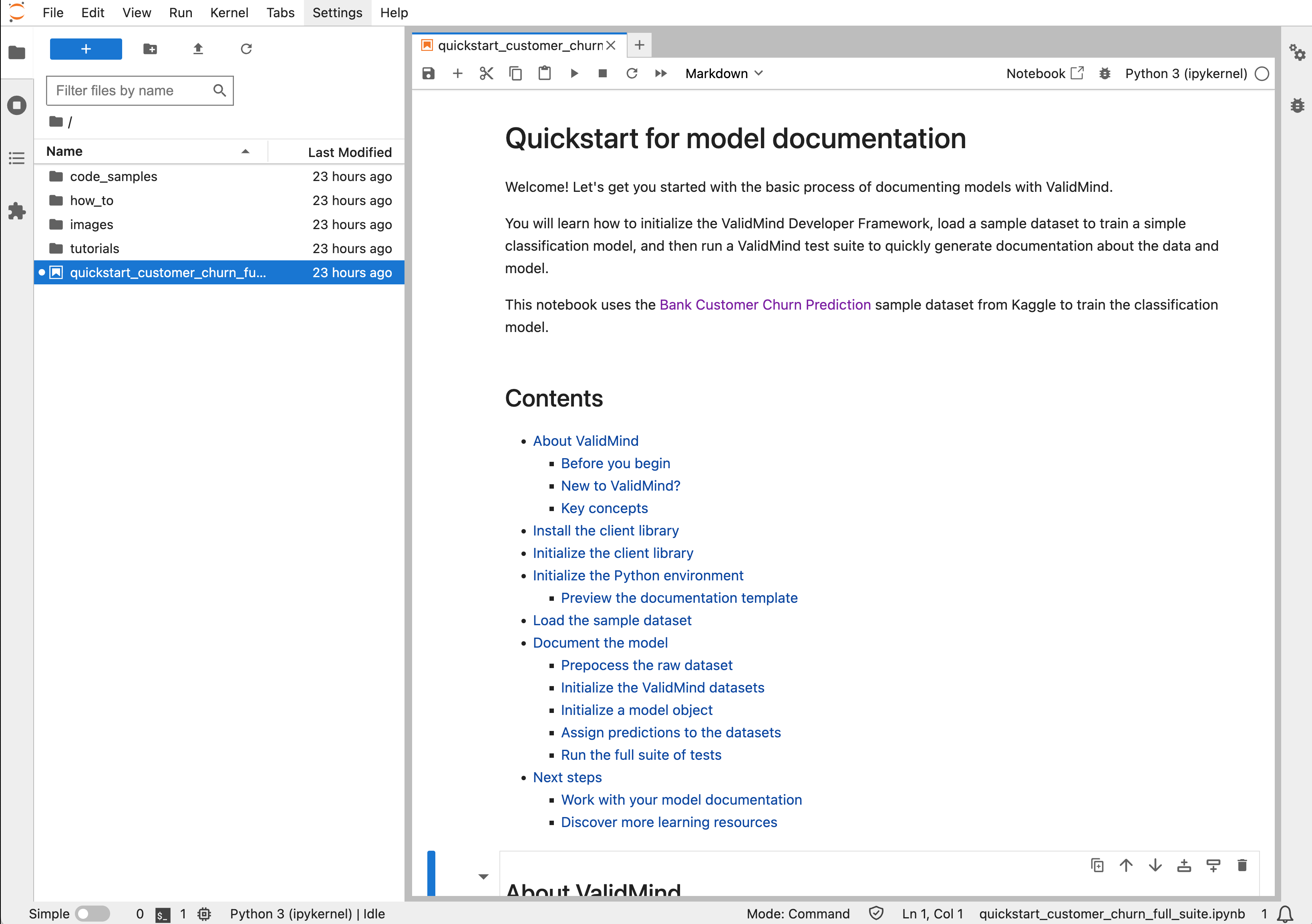
    A screenshot showing the QuickStart notebook opened in JupyterHub

    QuickStart notebook opened in JupyterHub

    The notebook will guide you through installing the ValidMind Library, initializing the Python environment, and finally connecting the library to the ValidMind Platform.

  2. Follow the instructions to run the first two code cells in the notebook, which will set the stage by installing and initializing ​ValidMind:1

    • Hover over each cell and click the icon; OR
    • Press Shift + Enter on Windows or Cmd + Enter if you are on a Mac

    Under the cell at bottom of the Initialize the ValidMind Library section, confirm that you see a success message that looks something like this:

    2024-10-08 22:06:42,610 - INFO(validmind.api_client): 🎉 Connected to ​ValidMind!
    📊 Model: [Demo] Customer Churn Model (ID: clwqy70qd01my22ikc49paar9)
    📁 Document Type: model_documentation

    This message verifies that the library works as expected as is connected to the correct model within the platform.

1 Install and initialize the ValidMind Library

You can now continue running the rest of the cells if you want to see how the demo notebook works or, to save some time, you can move on to the Explore sample model documentation to explore the platform.

Watch the tutorial

Need more help? Experience this guide in video format:

What’s next

Continue with Explore sample model documentation to learn more about using the ValidMind Platform hands-on.

Model validation
  • ValidMind Logo
    • News
    • Careers
    • Contact
    • Legal
    © Copyrigh 2025
    ValidMind Inc.
    All Rights Reserved.
    Cookie preferences
  • User Guides
    • Get started
    • Onboarding
    • Model Inventory
    • What's new?
    • Model documentation
    • Model validation
    • Model workflows
    • Reporting
    • Monitoring
    • Attestation
  • ValidMind Library
    • For model development
    • For model validation
    • Code samples
    • API Reference
  • Training
    • Learning paths
    • Courses
    • Videos
  • Edit this page
  • Report an issue
  • Support
    • Troubleshooting
    • FAQ
    • Get help
  • Community
    • Github
    • Slack
    • Blog