• About
  • Get Started
  • Guides
  • Developers
    • Get Started
    • Supported Models
    • Documenting Models

    • TESTING
    • Run Tests & Test Suites
    • Test Descriptions
    • Test Sandbox (BETA)

    • CODE SAMPLES
    • All Code Samples · LLM · NLP · Time Series · Etc.
    • Download Code Samples · notebooks.zip
    • Try it on JupyterHub

    • REFERENCE
    • ValidMind Library
  • FAQ
  • Support
  • Training
  • validmind.com
  • Documentation
    • About ValidMind
    • Get Started
    • Guides
    • FAQ
    • Support

    • Developers
    • ValidMind Library

    • ValidMind Academy
    • Training Courses

    • validmind.com
  • Training
    • ValidMind Academy

    • Fundamentals
    • For Administrators
    • For Developers
    • For Validators
  • Log In
    • Public Internet
    • ValidMind Platform · US1
    • ValidMind Platform · CA1

    • Private Link
    • Virtual Private ValidMind (VPV)

    • Which login should I use?
  1. Documenting models
  2. Work with test results

EU AI Act Compliance — Read our original regulation brief on how the EU AI Act aims to balance innovation with safety and accountability, setting standards for responsible AI use

  • ValidMind Library

  • Model Documentation
  • Quickstart for model documentation
  • Introduction for model developers
  • Supported models
  • Documenting models
    • Document models
    • Install and initialize ValidMind Library
    • Work with test results
    • Store model credentials in .env files

  • Model Testing
  • Run tests & test suites
    • Add context to LLM-generated test descriptions
    • Configure dataset features
    • Document multiple results for the same test
    • Explore test suites
    • Explore tests
    • Dataset Column Filters when Running Tests
    • Load dataset predictions
    • Log metrics over time
    • Run individual documentation sections
    • Run documentation tests with custom configurations
    • Run tests with multiple datasets
    • Intro to Unit Metrics
    • Understand and utilize RawData in ValidMind tests
    • Introduction to ValidMind Dataset and Model Objects
    • Run Tests
      • Run dataset based tests
      • Run comparison tests
  • Test descriptions
    • Data Validation
      • ACFandPACFPlot
      • ADF
      • AutoAR
      • AutoMA
      • AutoStationarity
      • BivariateScatterPlots
      • BoxPierce
      • ChiSquaredFeaturesTable
      • ClassImbalance
      • DatasetDescription
      • DatasetSplit
      • DescriptiveStatistics
      • DickeyFullerGLS
      • Duplicates
      • EngleGrangerCoint
      • FeatureTargetCorrelationPlot
      • HighCardinality
      • HighPearsonCorrelation
      • IQROutliersBarPlot
      • IQROutliersTable
      • IsolationForestOutliers
      • JarqueBera
      • KPSS
      • LaggedCorrelationHeatmap
      • LJungBox
      • MissingValues
      • MissingValuesBarPlot
      • MutualInformation
      • PearsonCorrelationMatrix
      • PhillipsPerronArch
      • ProtectedClassesCombination
      • ProtectedClassesDescription
      • ProtectedClassesDisparity
      • ProtectedClassesThresholdOptimizer
      • RollingStatsPlot
      • RunsTest
      • ScatterPlot
      • ScoreBandDefaultRates
      • SeasonalDecompose
      • ShapiroWilk
      • Skewness
      • SpreadPlot
      • TabularCategoricalBarPlots
      • TabularDateTimeHistograms
      • TabularDescriptionTables
      • TabularNumericalHistograms
      • TargetRateBarPlots
      • TimeSeriesDescription
      • TimeSeriesDescriptiveStatistics
      • TimeSeriesFrequency
      • TimeSeriesHistogram
      • TimeSeriesLinePlot
      • TimeSeriesMissingValues
      • TimeSeriesOutliers
      • TooManyZeroValues
      • UniqueRows
      • WOEBinPlots
      • WOEBinTable
      • ZivotAndrewsArch
      • Nlp
        • CommonWords
        • Hashtags
        • LanguageDetection
        • Mentions
        • PolarityAndSubjectivity
        • Punctuations
        • Sentiment
        • StopWords
        • TextDescription
        • Toxicity
    • Model Validation
      • BertScore
      • BleuScore
      • ClusterSizeDistribution
      • ContextualRecall
      • FeaturesAUC
      • MeteorScore
      • ModelMetadata
      • ModelPredictionResiduals
      • RegardScore
      • RegressionResidualsPlot
      • RougeScore
      • TimeSeriesPredictionsPlot
      • TimeSeriesPredictionWithCI
      • TimeSeriesR2SquareBySegments
      • TokenDisparity
      • ToxicityScore
      • Embeddings
        • ClusterDistribution
        • CosineSimilarityComparison
        • CosineSimilarityDistribution
        • CosineSimilarityHeatmap
        • DescriptiveAnalytics
        • EmbeddingsVisualization2D
        • EuclideanDistanceComparison
        • EuclideanDistanceHeatmap
        • PCAComponentsPairwisePlots
        • StabilityAnalysisKeyword
        • StabilityAnalysisRandomNoise
        • StabilityAnalysisSynonyms
        • StabilityAnalysisTranslation
        • TSNEComponentsPairwisePlots
      • Ragas
        • AnswerCorrectness
        • AspectCritic
        • ContextEntityRecall
        • ContextPrecision
        • ContextPrecisionWithoutReference
        • ContextRecall
        • Faithfulness
        • NoiseSensitivity
        • ResponseRelevancy
        • SemanticSimilarity
      • Sklearn
        • AdjustedMutualInformation
        • AdjustedRandIndex
        • CalibrationCurve
        • ClassifierPerformance
        • ClassifierThresholdOptimization
        • ClusterCosineSimilarity
        • ClusterPerformanceMetrics
        • CompletenessScore
        • ConfusionMatrix
        • FeatureImportance
        • FowlkesMallowsScore
        • HomogeneityScore
        • HyperParametersTuning
        • KMeansClustersOptimization
        • MinimumAccuracy
        • MinimumF1Score
        • MinimumROCAUCScore
        • ModelParameters
        • ModelsPerformanceComparison
        • OverfitDiagnosis
        • PermutationFeatureImportance
        • PopulationStabilityIndex
        • PrecisionRecallCurve
        • RegressionErrors
        • RegressionErrorsComparison
        • RegressionPerformance
        • RegressionR2Square
        • RegressionR2SquareComparison
        • RobustnessDiagnosis
        • ROCCurve
        • ScoreProbabilityAlignment
        • SHAPGlobalImportance
        • SilhouettePlot
        • TrainingTestDegradation
        • VMeasure
        • WeakspotsDiagnosis
      • Statsmodels
        • AutoARIMA
        • CumulativePredictionProbabilities
        • DurbinWatsonTest
        • GINITable
        • KolmogorovSmirnov
        • Lilliefors
        • PredictionProbabilitiesHistogram
        • RegressionCoeffs
        • RegressionFeatureSignificance
        • RegressionModelForecastPlot
        • RegressionModelForecastPlotLevels
        • RegressionModelSensitivityPlot
        • RegressionModelSummary
        • RegressionPermutationFeatureImportance
        • ScorecardHistogram
    • Ongoing Monitoring
      • CalibrationCurveDrift
      • ClassDiscriminationDrift
      • ClassificationAccuracyDrift
      • ClassImbalanceDrift
      • ConfusionMatrixDrift
      • CumulativePredictionProbabilitiesDrift
      • FeatureDrift
      • PredictionAcrossEachFeature
      • PredictionCorrelation
      • PredictionProbabilitiesHistogramDrift
      • PredictionQuantilesAcrossFeatures
      • ROCCurveDrift
      • ScoreBandsDrift
      • ScorecardHistogramDrift
      • TargetPredictionDistributionPlot
    • Prompt Validation
      • Bias
      • Clarity
      • Conciseness
      • Delimitation
      • NegativeInstruction
      • Robustness
      • Specificity
  • Test sandbox beta

  • Notebooks
  • Code samples
    • Capital Markets
      • Quickstart for knockout option pricing model documentation
      • Quickstart for Heston option pricing model using QuantLib
    • Credit Risk
      • Document an application scorecard model
      • Document an application scorecard model
      • Document an application scorecard model
      • Document a credit risk model
      • Document an application scorecard model
    • Custom Tests
      • Implement custom tests
      • Integrate external test providers
    • Nlp and Llm
      • Sentiment analysis of financial data using a large language model (LLM)
      • Summarization of financial data using a large language model (LLM)
      • Sentiment analysis of financial data using Hugging Face NLP models
      • Summarization of financial data using Hugging Face NLP models
      • Automate news summarization using LLMs
      • Prompt validation for large language models (LLMs)
      • RAG Model Documentation Demo
    • Ongoing Monitoring
      • Ongoing Monitoring for Application Scorecard
      • Quickstart for ongoing monitoring of models with ValidMind
    • Regression
      • Document a California Housing Price Prediction regression model
    • Time Series
      • Document a time series forecasting model
      • Document a time series forecasting model

  • Reference
  • ValidMind Library

On this page

  • Prerequisites
  • Add test results
  • View test result metadata
  • What’s next
  • Edit this page
  • Report an issue
  1. Documenting models
  2. Work with test results

Work with test results

Published

February 10, 2025

Once generated via the ValidMind Library, view and add the test results to your documentation in the ValidMind Platform.

Prerequisites

1 Document models

2 Manage permissions

Add test results

  1. In the left sidebar, click Inventory.

  2. Select a model or find your model by applying a filter or searching for it.3

  3. In the left sidebar that appears for your model, click Documentation, Validation Report, or Ongoing Monitoring.

    You can now jump to any section of the model documentation, validation report, or ongoing monitoring plan by expanding the table of contents on the left and selecting the relevant section you would like to add content to, such as 1.1 Model Overview.

  4. Hover your mouse over the space where you want your new block to go until a horizontal dashed line with a sign appears that indicates you can insert a new block:

    A gif showing the process of adding a content block in the UI

    Adding a content block in the UI
  5. Click and then select Test-Driven.4

    • By default, the Developer role can add test-driven blocks within model documentation or ongoing-monitoring plans.
    • By default, the Validator role can add test-driven blocks within validation reports.
  6. Select test results:

    • Select the tests to insert into the model documentation from the list of available tests.
    • Search by name using Search on the top-left to locate specific test results.
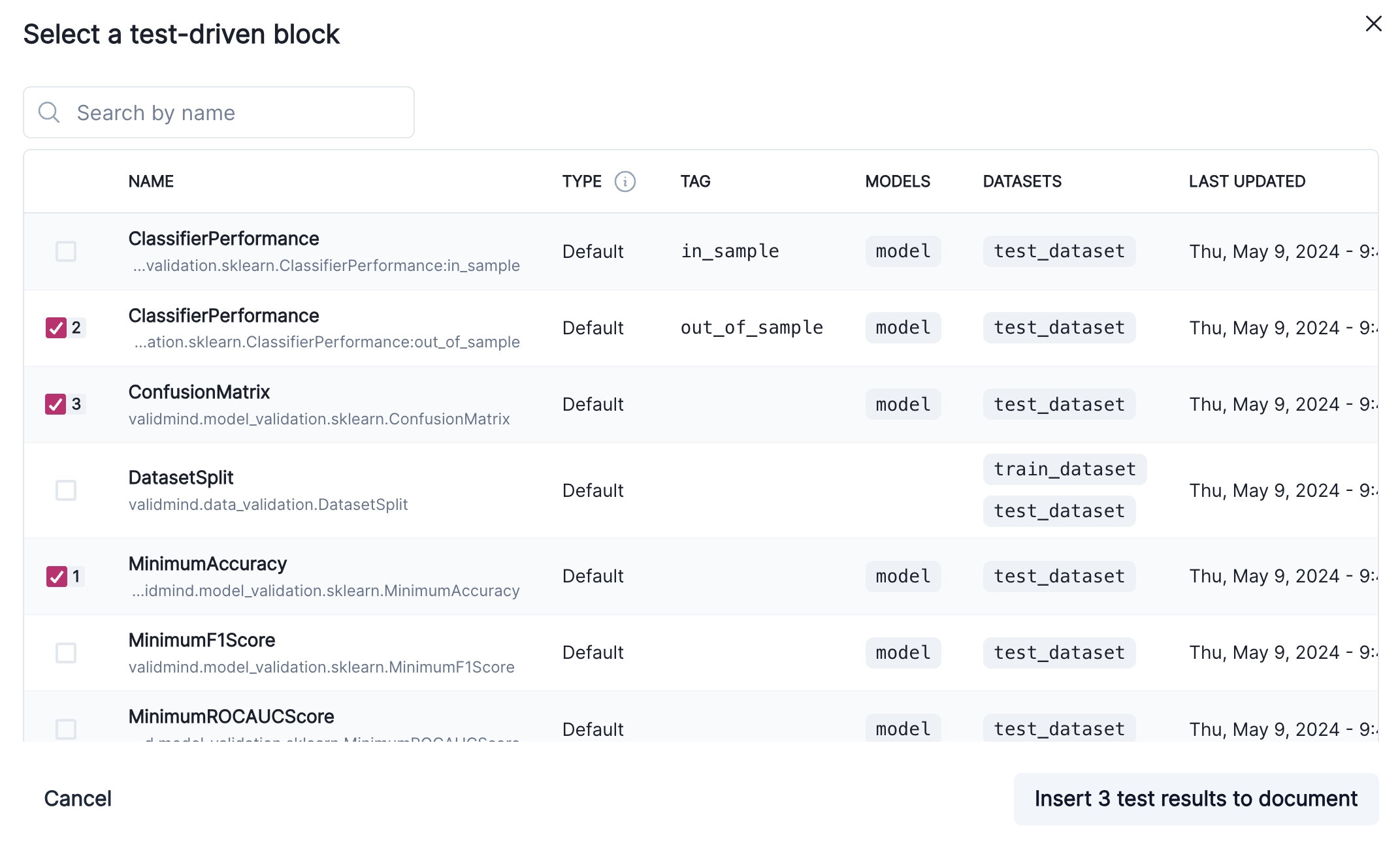
    A screenshot showing several test-driven blocks that have been selected for insertion

    Test-driven blocks that have been selected for insertion

    To preview what is included in a test, click on it. By default, the actively selected test is reviewed.

  7. Click Insert # Test Results to Document when you are ready.

  8. After inserting the results into your document, click on the text to make changes or add comments.5

3 Working with the model inventory

4 Work with content blocks

5 Collaborate with others

View test result metadata

After you have added a test result to your document, you can view the following information attached to the result:

  • History of values for the result
  • What users wrote those results
  • Relevant inputs associated with the result
  1. In the left sidebar, click Inventory.

  2. Select a model by clicking on it or find your model by applying a filter or searching for it.6

  3. In the left sidebar that appears for your model, click Documentation, Validation Report, or Ongoing Monitoring.

  4. Locate the test result whose metadata you want to view.

  5. Under the test result’s name, click on the row indicating the currently Active test result.

    • On the test result timeline, click on the associated with a test run to expand for details.
    • When you are done, you can either click Cancel or to close the metadata menu.
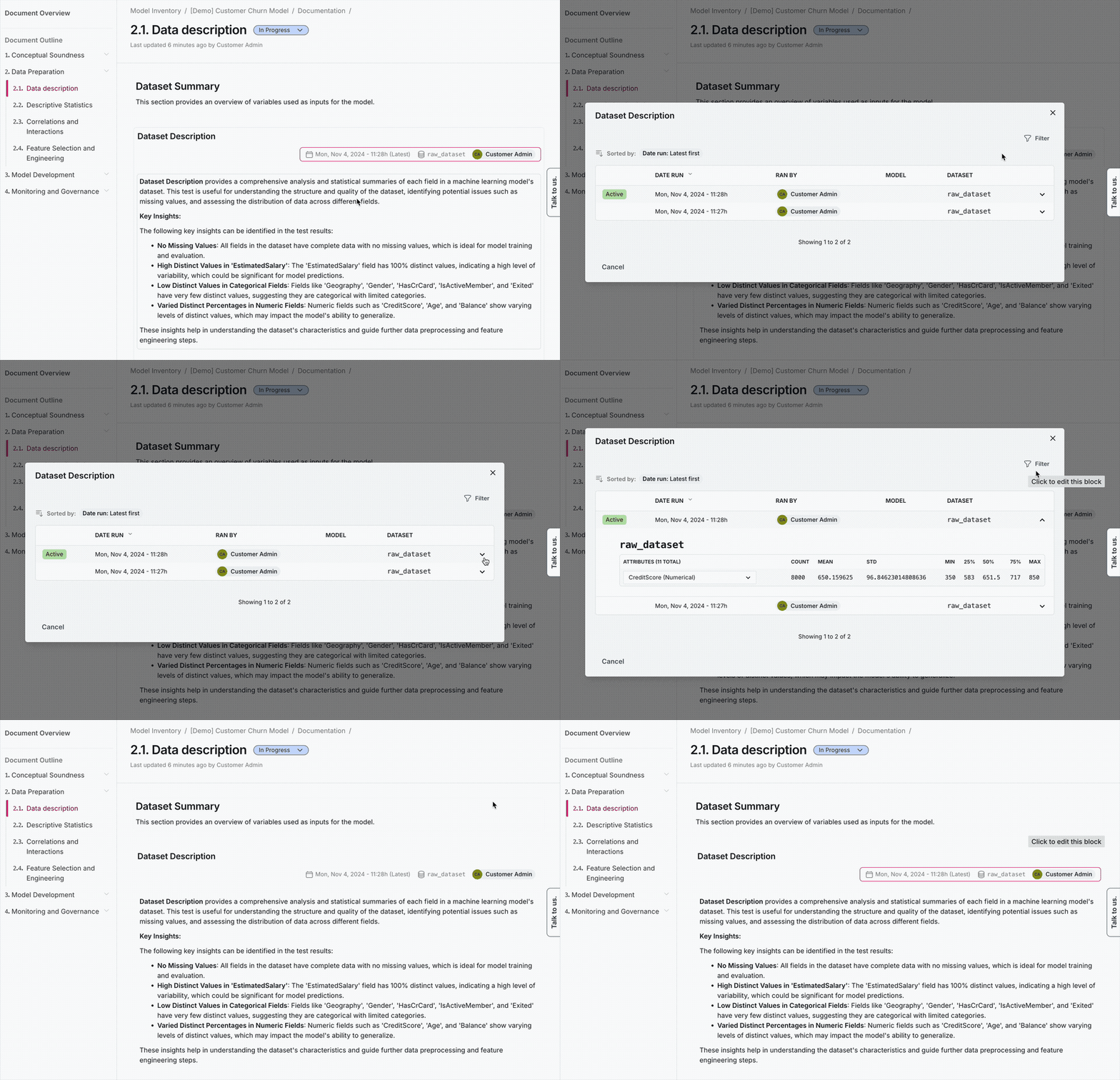
    A gif showcasing detail expansion of test runs on the test result timeline

    Detail expansion of test runs on the test result timeline

6 Working with the model inventory

Filter historical test results

By default, test result metadata are sorted by date run in descending order. The latest result is automatically indicated as Active.

To narrow down test runs, you can apply some filters:

  1. On the detail expansion for test result metadata, click Filter.

  2. On the Select Your Filters dialog that opens, enter your filtering criteria for:

    • Date range
    • Model
    • Dataset
    • Run by
  3. Click Apply Filters.

Filters can be removed from the list of test result metadata by clicking on the next to them.

What’s next

  • Working with model documentation
  • Work with content blocks
  • Collaborate with others
  • View model activity
Install and initialize ValidMind Library
Store model credentials in .env files

© Copyright 2023-2024 ValidMind Inc. All Rights Reserved.

  • Edit this page
  • Report an issue
Cookie Preferences
  • validmind.com

  • Privacy Policy

  • Terms of Use