Work with test results
Once generated via the ValidMind Developer Framework, view and add the test results to your documentation in the ValidMind Platform UI.
Prerequisites
Add test results
In the left sidebar, click Model Inventory.
Select a model or find your model by applying a filter or searching for it.3
In the left sidebar that appears for your model, click Documentation, Validation Report, or Ongoing Monitoring.
You can now jump to any section of the model documentation, validation report, or ongoing monitoring plan by expanding the table of contents on the left and selecting the relevant section you would like to add content to, such as 1.1 Model Overview.
Hover your mouse over the space where you want your new block to go until a horizontal dashed line with a sign appears that indicates you can insert a new block:
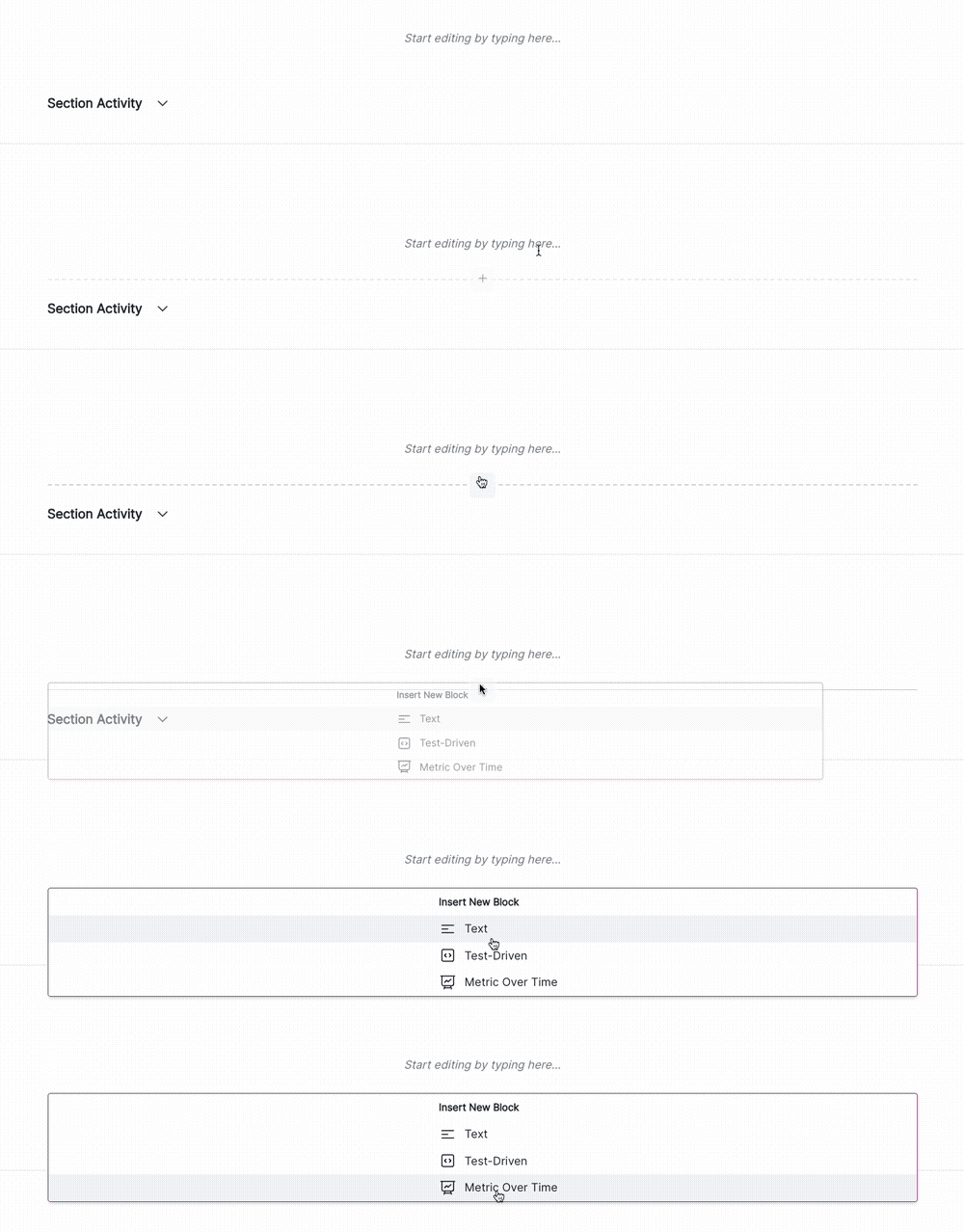
Adding a content block in the UI Click and then select Test-Driven.4
- By default, the Developer role can add test-driven blocks within model documentation or ongoing-monitoring plans.
- By default, the Validator role can add test-driven blocks within validation reports.
Select test results:
- Select the tests to insert into the model documentation from the list of available tests.
- Search by name using Search on the top-left to locate specific test results.
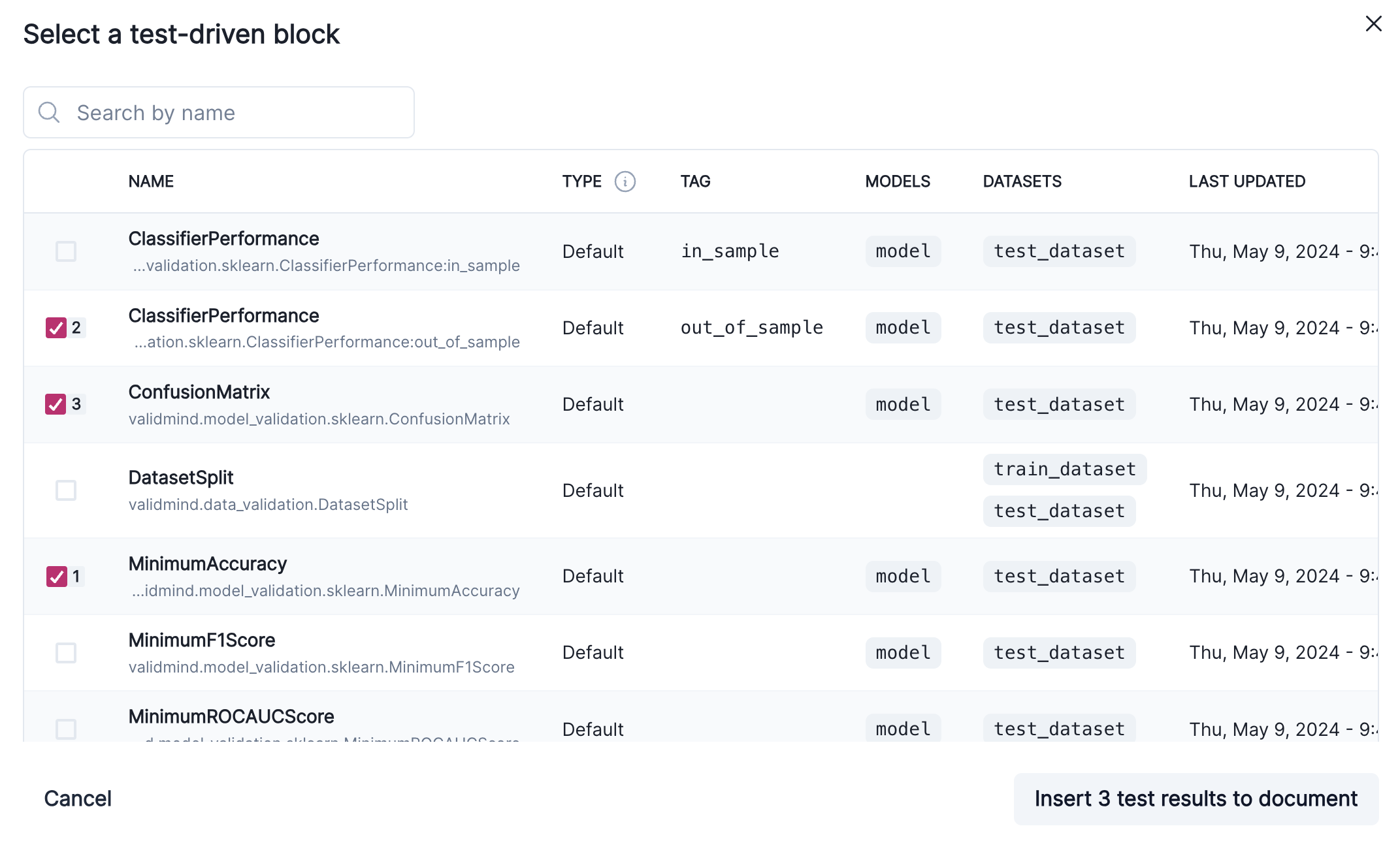
Test-driven blocks that have been selected for insertion To preview what is included in a test, click on it. By default, the actively selected test is reviewed.
Click Insert # Test Results to Document when you are ready.
After inserting the results into your document, click on the text to make changes or add comments.5
View test result metadata
After you have added a test result to your document, you can view the following information attached to the result:
- History of values for the result
- What users wrote those results
- Relevant inputs associated with the result
In the left sidebar, click Model Inventory.
Select a model by clicking on it or find your model by applying a filter or searching for it.6
In the left sidebar that appears for your model, click Documentation, Validation Report, or Ongoing Monitoring.
Locate the test result whose metadata you want to view.
Under the test result’s name, click on the row indicating the date of the latest changes.
- On the test result timeline, click on the associated with a test run to expand for details.
- When you are done, you can either click Cancel or to close the metadata menu.
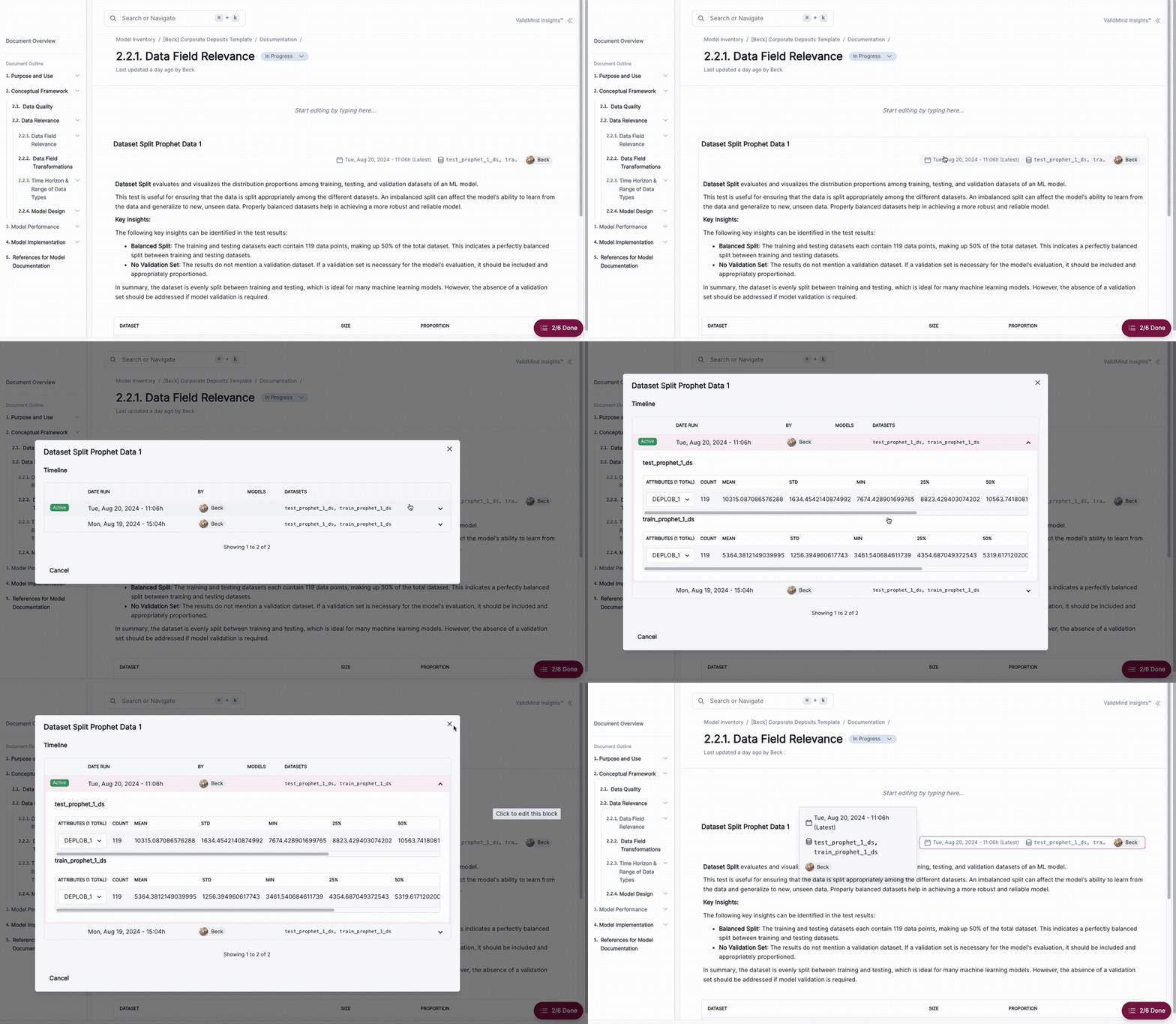
Detail expansion of test runs on the test result timeline